When the email parser actually works
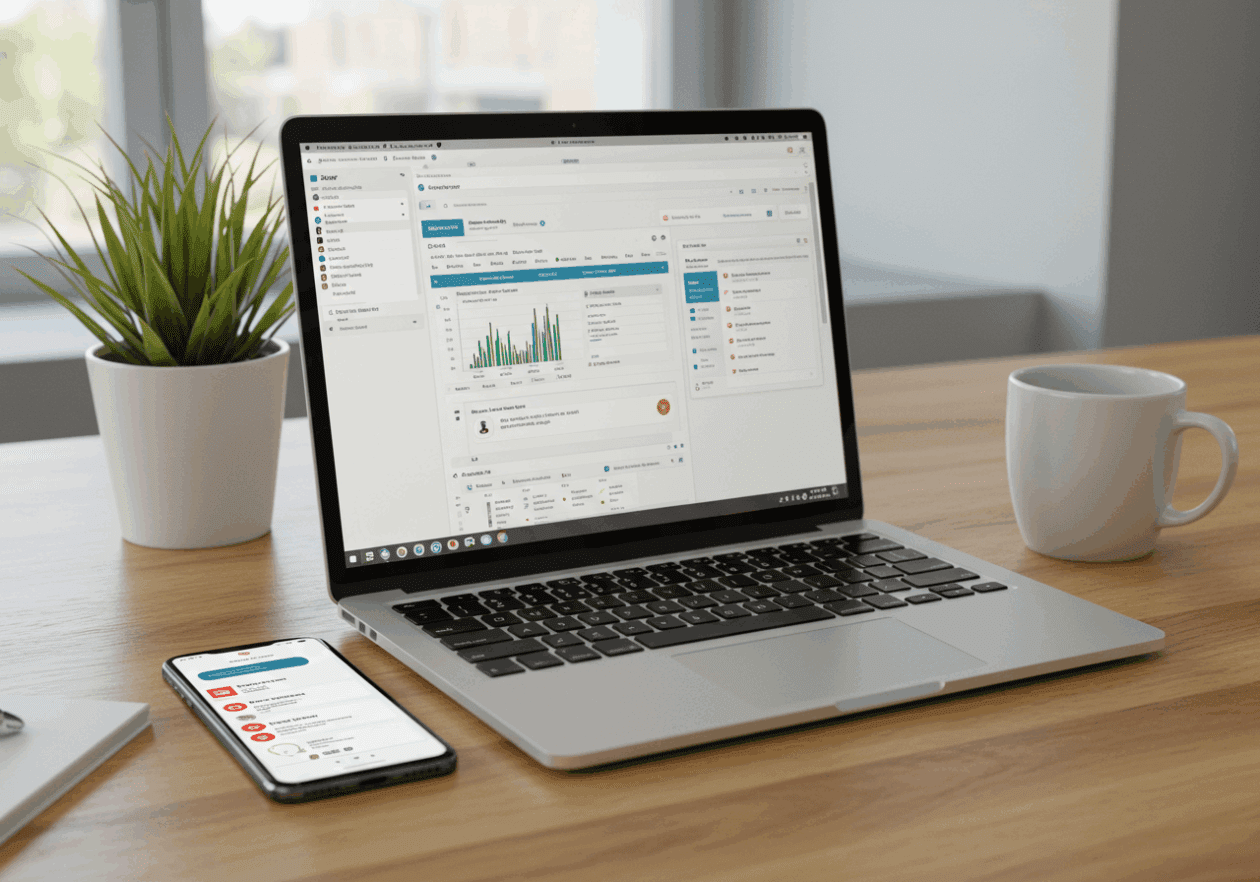
The first time I tried Zapier Email Parser, it felt like magic. I forwarded one of those messy contact form notifications that always landed in my inbox, and suddenly I could see little highlighted chunks like name, email, and message separated on the screen. The parser gave me fields I could reuse in other steps. It was almost too smooth. I built a Zap that took each new lead and dropped it into a Google Sheet. Watching the first test run was weirdly satisfying… one second it was just raw text in Gmail, the next it was neat little rows with proper columns. For once, things looked reliable 🙂
But that lasted about a week. Then I started noticing how small quirks in the incoming emails would throw it off completely. A client added a new line in their contact form output, so suddenly the parser thought the phone number was an address. Google Sheets filled wrong, and I didn’t realize until I emailed the wrong person. That’s when the “magic” stopped feeling magical and more like duct tape holding two pipes together.
Adjusting templates when they break
The parser trains itself on example emails, but here’s the problem: as soon as the source email formatting shifts even slightly, the parser gets “confused.” What I had to do was go into the parser mailbox, paste in the new email, and retrain it by reselecting fields. In theory, this only takes a few minutes. In practice, it always eats half an hour because you have to repeat test runs in Zapier until the data shows correctly. The parser screen highlights words in yellow, and you drag-select the portion you want. There’s no undo history. If you misclick once, you start over. That part is exhausting.
One trick I figured out was keeping my own “dummy record” email template in a text file. So when the form output changed again (and it did, randomly, three times in two months), instead of scrambling, I just updated my dummy record and retrained quickly. Without that, I would be re-forwarding dozens of emails to the parser mailbox just to get a single field corrected.
The problem with forwarded emails
Forwarding emails to the parser sounds fine until someone at your company clicks forward in Gmail manually. The formatting blows up because of extra indentation and signatures. The parser then sees the wrong indentation and thinks the field starts after a signature dash line. You can imagine what happens next… columns start filling with email disclaimers instead of the actual customer name. I had one Zap that recorded the entire “Confidential information intended only for…” disclaimer as the customer’s message. Not fun.
The safer method I ended up with was setting up Gmail filters that auto-forward only specific kinds of emails directly to the parser address. No manual forwarding. This way the raw header and body are preserved exactly as they arrive. Still, Gmail occasionally decides to alter the formatting of forwarded body text. I noticed this mostly when attachments were added. If your emails often include attached files, you will get inconsistencies.
When the parser fields vanish in Zapier
This issue took me forever to notice. Inside a Zap, you select parser fields to map into Google Sheets, Airtable, Slack, wherever. For some reason, every once in a while, Zapier throws a random cache reset and the parser fields disappear from the dropdown. Instead of “First Name,” “Last Name,” all I saw was one long string labeled “Body Plain.” I thought my parser mailbox broke, but no — logging out and back in made them reappear. Still, that temporary disappearance broke half a dozen Zaps because the fields saved in those steps just became blank.
To deal with this, I stopped hard-mapping fields whenever possible. Instead, I kept a step that records the raw full body into a sheet column, as a backup. If the parser acts up, I still have the raw text in the automation flow. Yes, it means cleaning it up by hand occasionally, but it saves the entire workflow from failing silently. That’s something the documentation doesn’t warn you about, but it’s real.
Parsing inconsistent invoice emails
If you’ve ever tried parsing invoices sent by vendors, prepare for pain. I had vendors emailing receipts with subject lines like “Invoice attached,” “Monthly billing notice,” or sometimes nothing consistent at all. The parser cannot handle PDFs or attachments, so forget about extracting totals from an actual invoice PDF. All I could capture was whatever numeric summary the vendor placed in the email body. The trouble is: some use commas for decimals, others use periods. The parser thinks these are separate kinds of fields, so it won’t consistently recognize “125,50” as the same as “125.50.”
I ended up adding a Formatter step in Zapier after the parser, turning commas into dots and stripping symbols. This helped normalize the numbers. Without that, you’ll wake up one morning and find your spreadsheet calculating totals with a mix of French-style decimals and American-style ones — complete chaos. ¯\\_(ツ)_/¯
Comparing Zapier parser to alternatives
For anyone new, it’s worth knowing Zapier’s Email Parser is not the only option. I tested Mailparser as well, which is an external service. Mailparser gives you more robust rules (like regex matching, which can grab patterns such as specific date formats). It handled inconsistent spacing better than Zapier’s parser. But of course, Mailparser adds another subscription, and I was already paying for Zapier. Unless your email layouts are truly chaotic, the built-in Zapier parser is enough.
Still, for critical workflows like expense tracking or recurring client data capture, I lean toward Mailparser. The reason is stability: I’ve had Zapier parser randomly stop forwarding emails for hours. With Mailparser, the feed processed in near real time. If I were relying purely on forwarding leads, I wouldn’t risk missing one just because Zapier silently paused.
If you want to check out Mailparser, it’s at mailparser.io.
Cleaning up after parser misfires
Even if everything is set correctly, the parser will eventually misfire. Some weird variation in the original email will slip through, and suddenly your Airtable has junk values. For me, the cleanup process usually meant creating secondary automation. I added filters in Zapier that check: is the email address formatted with an @ sign? Is the phone number numeric? Did the message field accidentally pull in three paragraphs of a disclaimer text? If not, then continue. Otherwise, drop the row into a separate “Error” sheet.
This felt silly at first, like building guardrails for what should be a reliable app. But the first time I noticed a malformed phone number get emailed to my sales team, I realized why the guardrails are essential. They prevent embarrassment.
The emotional side of trusting automation
When you first wire up the parser to something important, it feels like the ultimate win. Emails are predictable, data is flowing, you are officially free from copy paste hell. But give it a few months, and you start noticing the cracks. The parser is like that coworker who does their job mostly fine, until one day they decide 2 pm is nap time and just vanish for hours. You almost expect reliability, until it doesn’t show up. 😛
That constant second guessing — checking if things still work, retraining fields, adding backup conditions — it wears you down, but it also makes you sharper. You realize automation isn’t about set it and forget it. It’s babysitting systems that don’t tell you when they break. In a strange way, the parser became a reminder for me that nothing in automation is really permanent, everything is an ongoing patchwork